The system is streamlined based on the Hummingbird Shared Electric Vehicle Management and Operations Platform, cutting advanced functions and focusing on the core needs of small-area shared mobility. Its functions are precisely adapted and simple to operate, balancing user experience and operational efficiency. No complex operations are required, and users can get started quickly.
1. User Portal (WeChat Mini Program)
1.1 Home
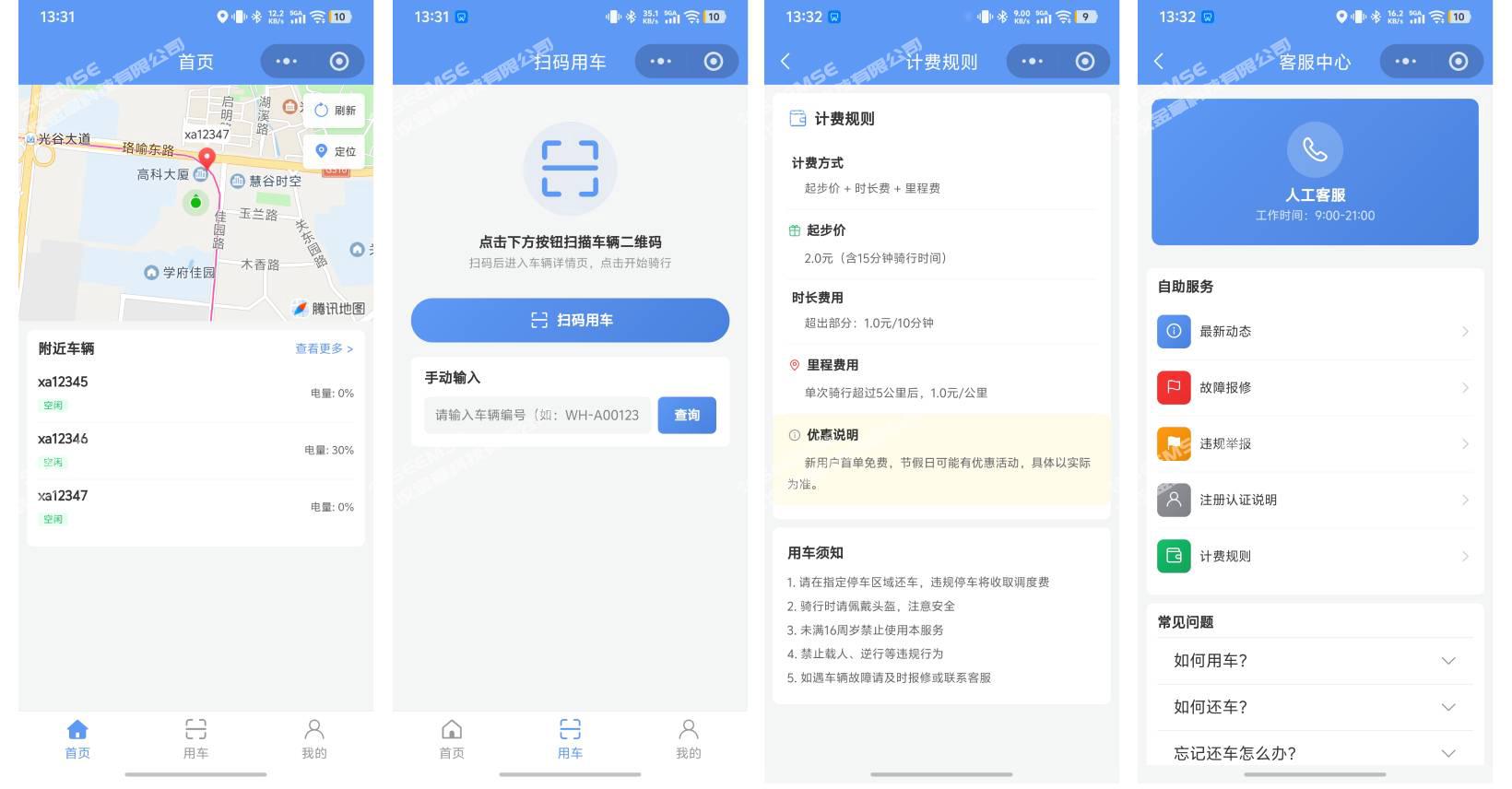
A lightweight district vehicle-use home page that meets tourists’ end-to-end needs for finding, using, and returning vehicles in one place.
Instructions and announcements: Click to jump to the instructions and announcements page, where announcement content is displayed as text;
Map switching: The map can be switched between “Vehicle Search” and “Parking Area Search” to display different content; click to re-locate to the current position;
Vehicle use and return: Supports scanning a QR code/manually entering a vehicle number to use a vehicle and to reserve a vehicle; when returning, the parking location is automatically verified. If parked in a compliant area, the lock can be engaged normally for return; if parked in a non-compliant area, a photo must be uploaded for verification;
Payment and refund: Integrates the full process of query, payment, revenue sharing, and refund, and connects to the designated payment platform interface to complete vehicle-use fee settlement;
Customer service center: View system-preset self-service items (latest updates, fault repair requests, requests for additional return points, violation reports) and usage instructions (registration and verification, billing, etc.), and click to call manual customer service;
Billing rules: View billing rules and vehicle-use rules;
1.2 My Account
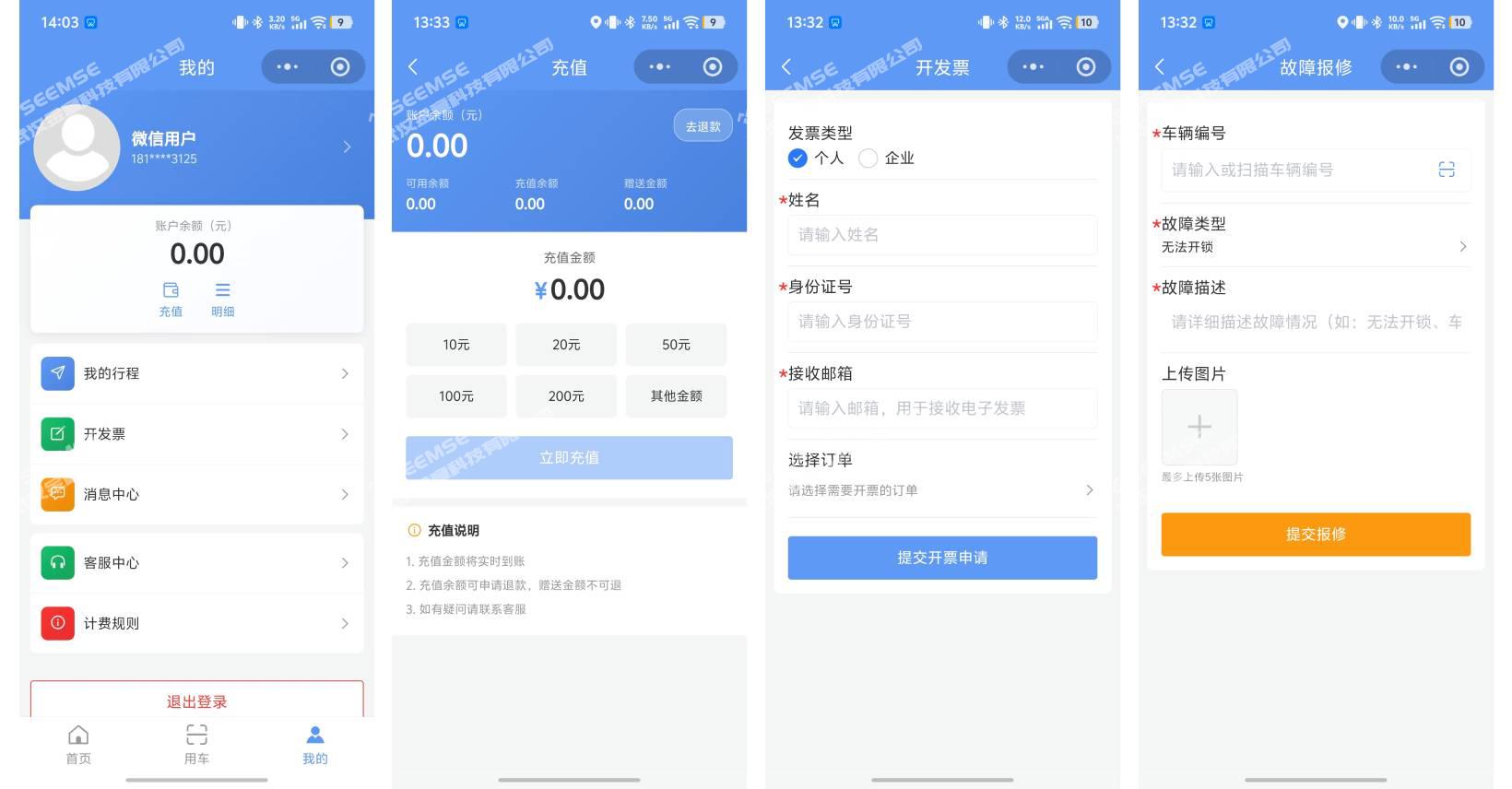
A one-stop personal service center that helps users manage accounts, view trips, handle after-sales issues, and meet other end-to-end needs.
User information: View basic personal information such as user avatar, name, mobile phone number, and real-name verification;
Balance information: Display balance details such as available balance, recharged amount, and gifted amount;
Account recharge: Click to enter the amount recharge page and connect to the designated payment platform to complete recharge;
Message center: View details of current messages in the message center;
My trips: View details of historical riding information;
Account details: View consumption details, purchase details, vehicle-use eligibility details, and other information under this account;
My settings: View About Us, various agreements, and other content; click to log out and complete logout;
Invoicing: Users can apply for invoices by themselves based on order information.
2. Operations Management Portal (Web)
2.1 Data Dashboard
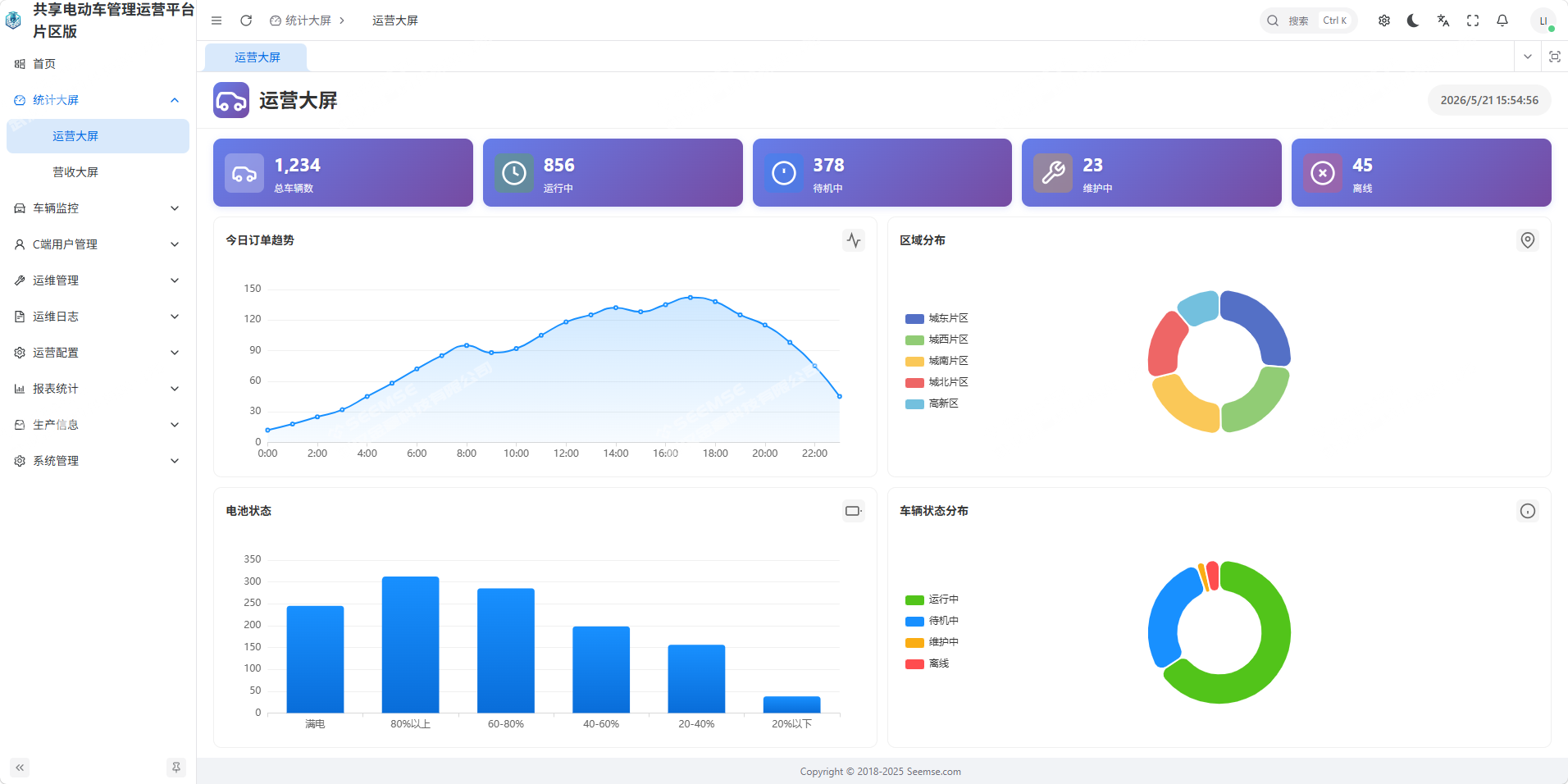
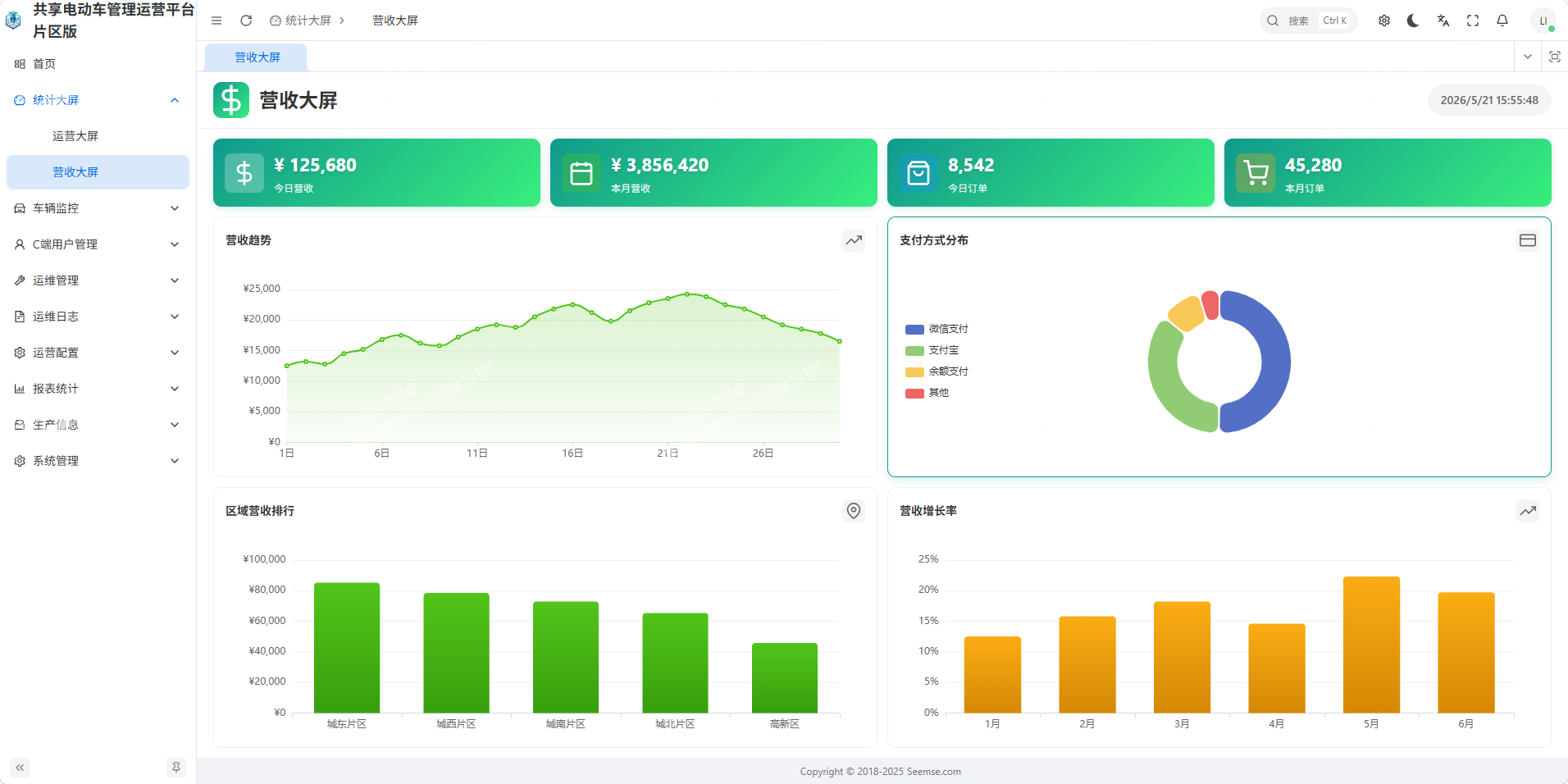
A lightweight operations data dashboard for real-time visibility into the overall status of district vehicle operations and revenue.
Operations dashboard: Supports multi-dimensional real-time viewing of operational data for a global grasp of operational dynamics;
Revenue dashboard: Supports multi-dimensional real-time viewing of revenue data for a clear understanding of revenue performance.
2.2 Vehicle Monitoring
Full-dimensional vehicle monitoring and management for real-time visibility into vehicle operating status and efficient dispatch management.
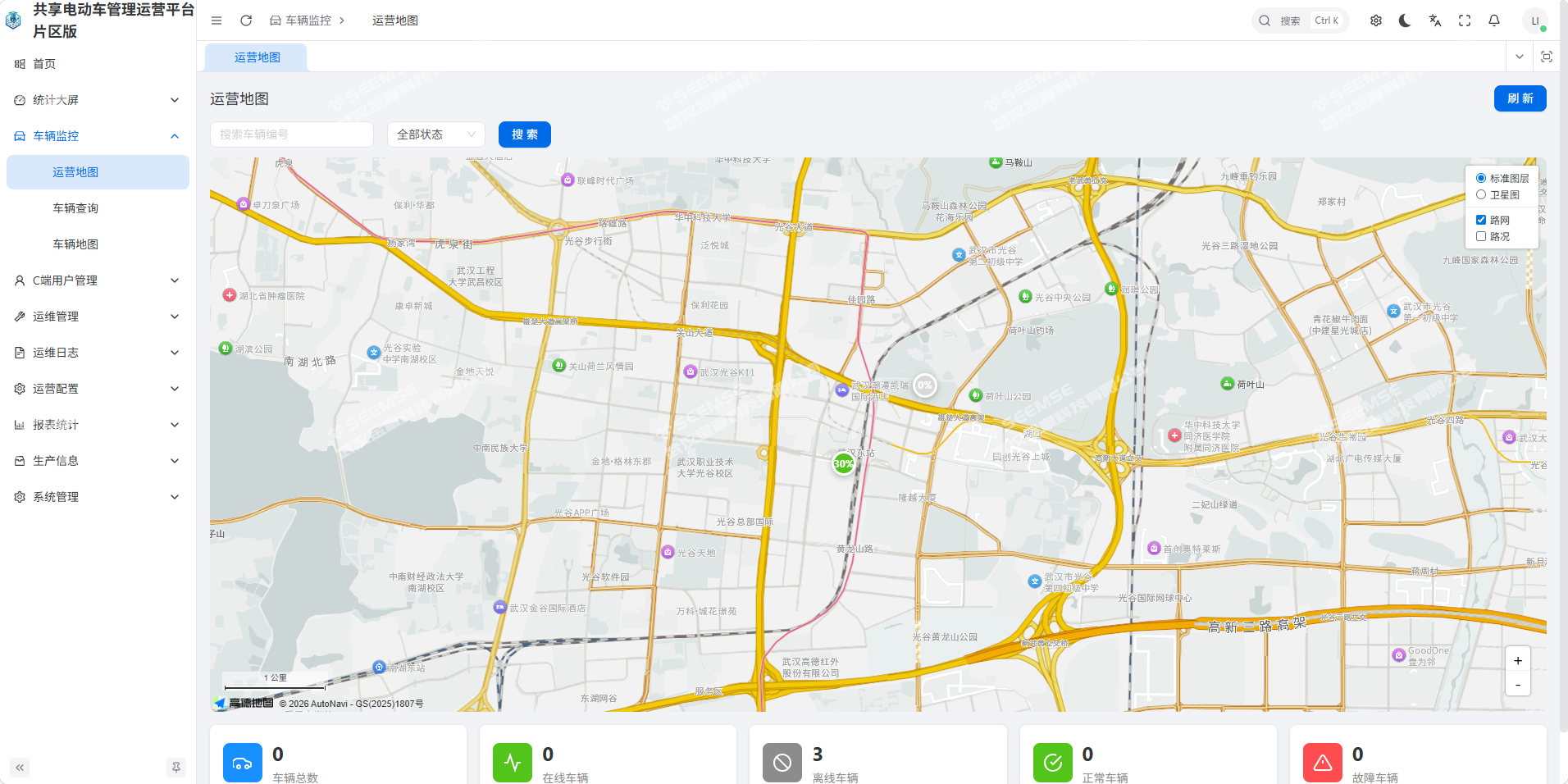
Operations map: View operating vehicle information on the operations map, with multi-dimensional filtering and vehicle search;
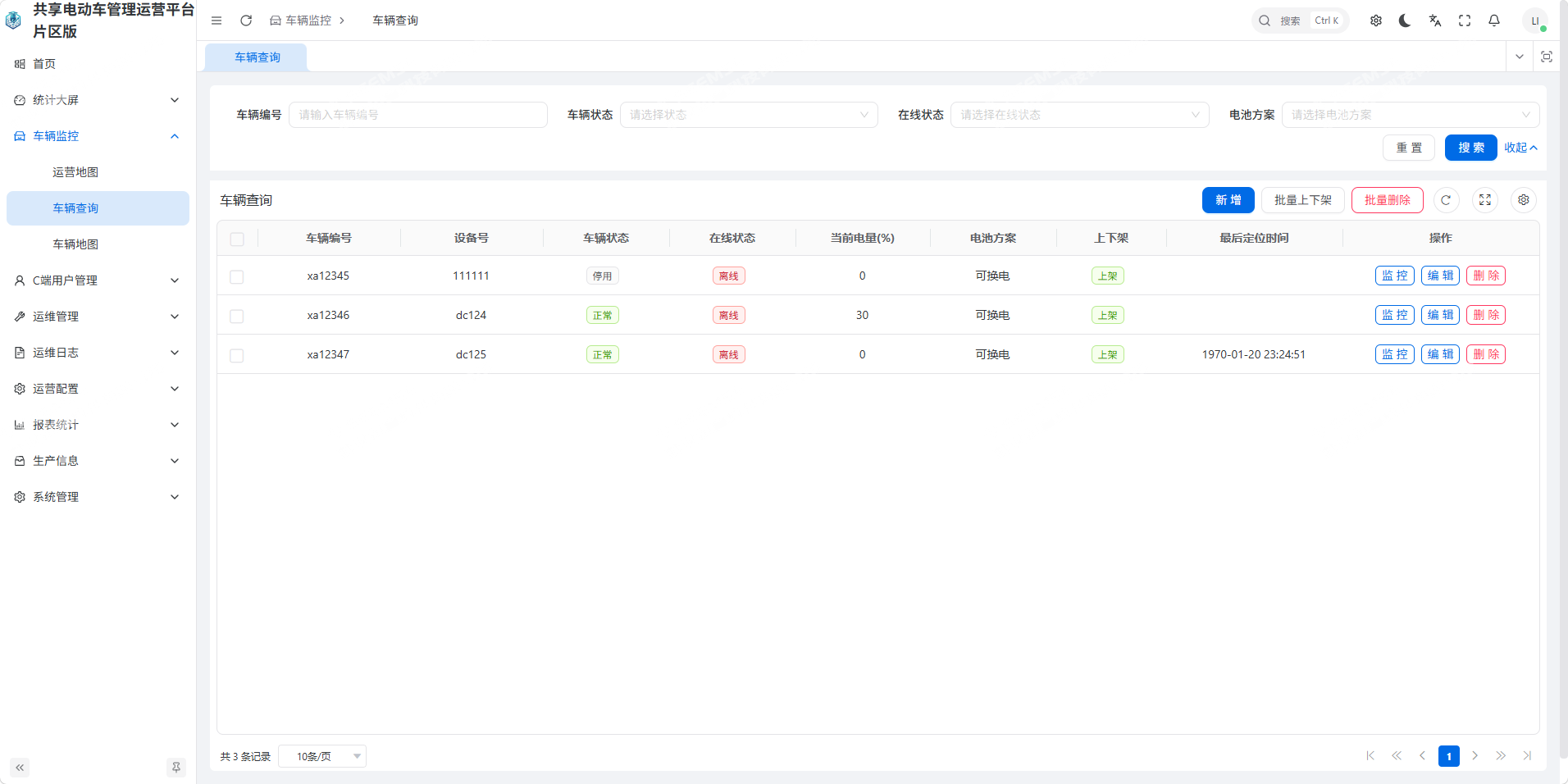
Vehicle query: Query information on all vehicles currently in the system, click to view various data for a vehicle, and support multi-dimensional filtering and vehicle search;
Device monitoring: After entering a device number, view detailed data for that vehicle, such as speed, device trajectory, universal angle, and signal strength;
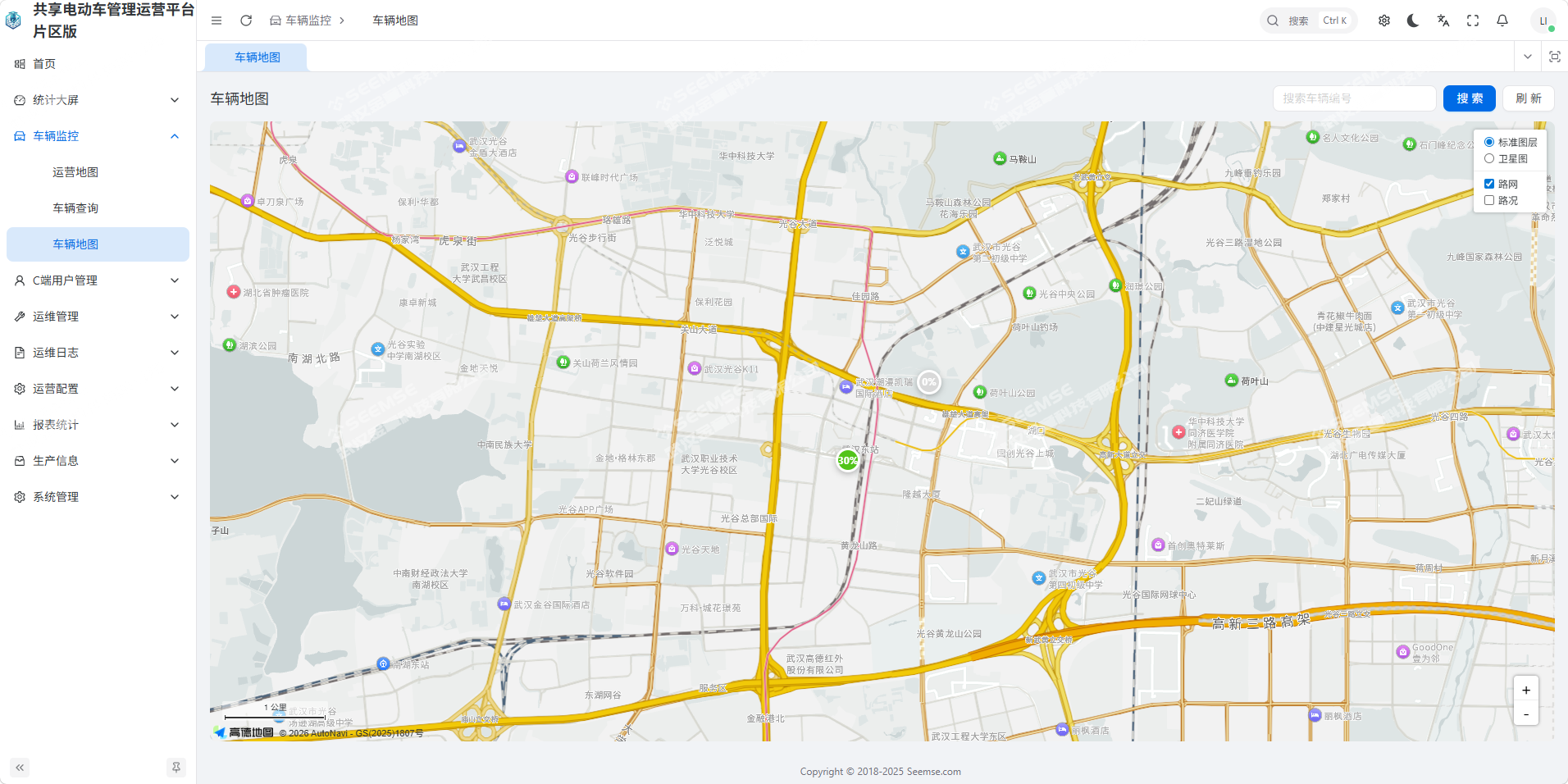
Vehicle map: Supports satellite map switching and vehicle status statistics;
2.3 User Management
End-to-end user and order management for efficient handling of the full chain of user vehicle-use business.
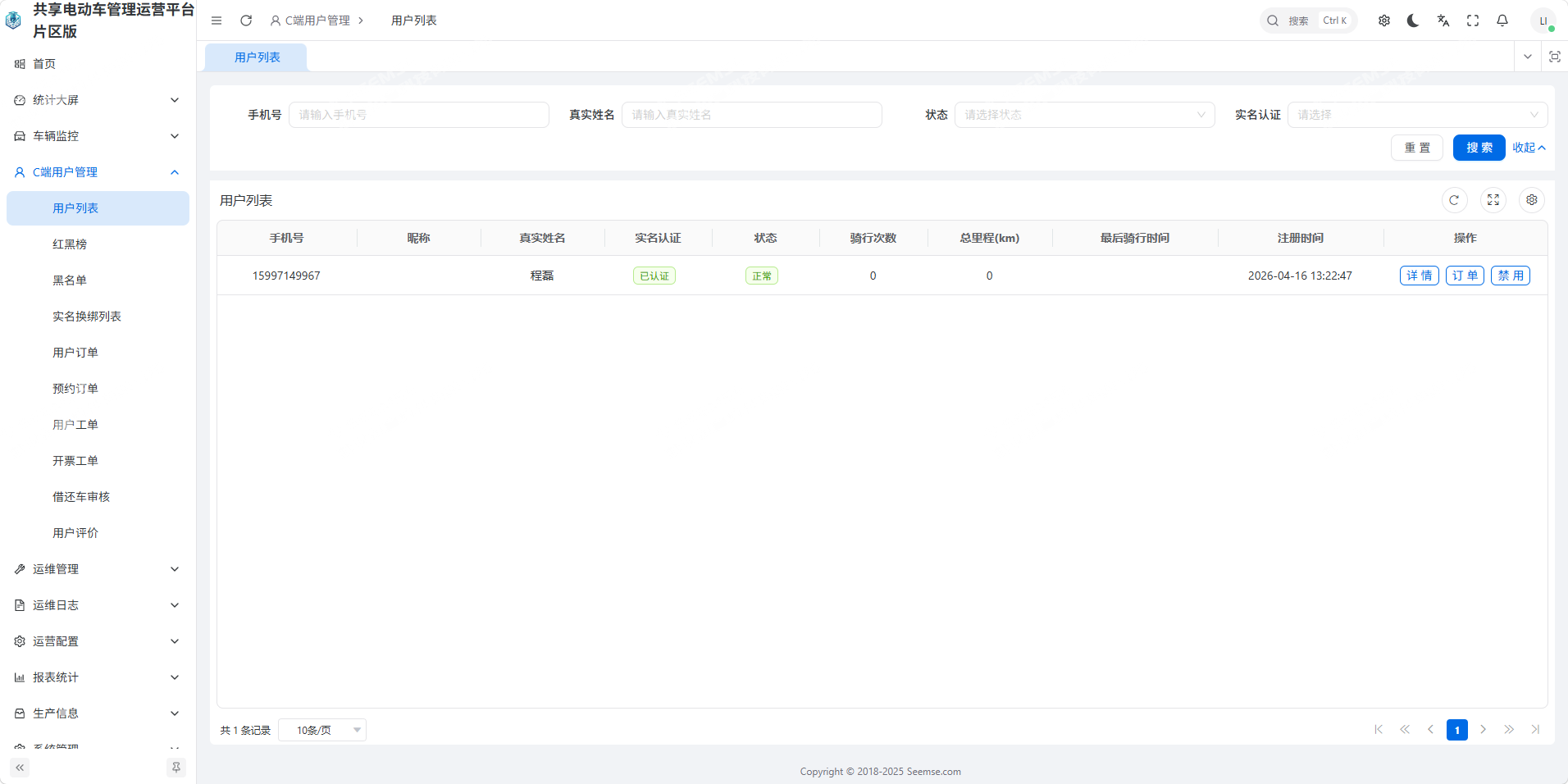
User list: View the user information list, click to view user details, and view the list of users with failed good-faith deposit refunds;
Red and Black Leaderboard: Displays user riding rankings, ride counts, and other information;
Blacklist: View the blacklist, with operations such as view, add, batch import, and delete;
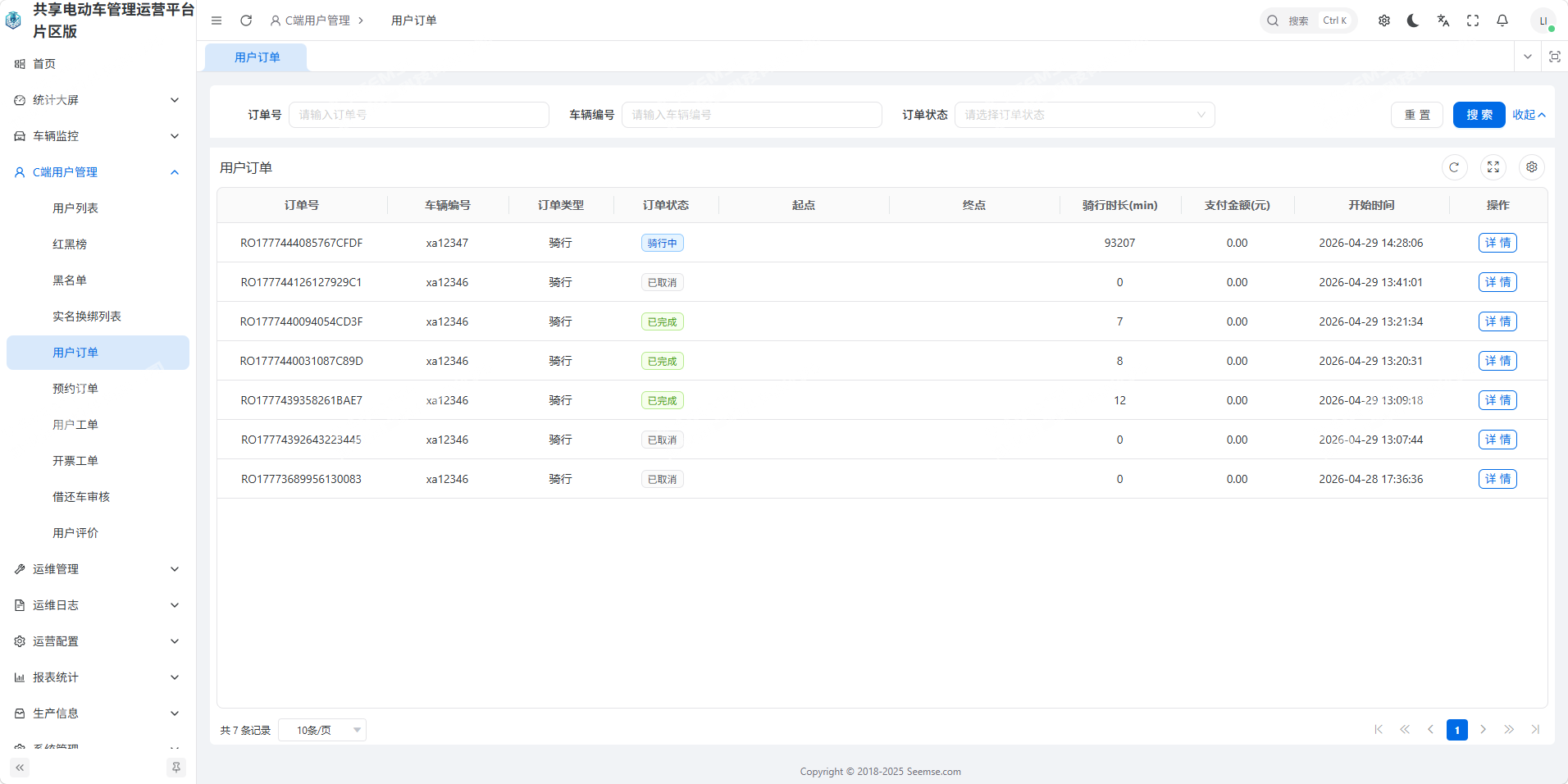
User orders: View the user order list, click to view the corresponding order details, and support filtering by district and multiple dimensions;
Reservation orders: View the user reservation order list, click to view the corresponding order details, and support filtering by district and multiple dimensions;
User work orders: View the user work order list, click to view the corresponding work order details, and support filtering by district and multiple dimensions;
Invoicing work orders: View the invoicing work order list, click to view the corresponding work order details, and support filtering by district and multiple dimensions;
Borrow/return review: View the borrow/return review list and perform related review actions;
User reviews: View the list of user order reviews, and click to view the corresponding order details.
2.4 O&M Management
Full-chain O&M work orders and vehicle management for efficient handling of daily O&M work.
Battery swap statistics: View battery swap statistics by district, with charts and logs;
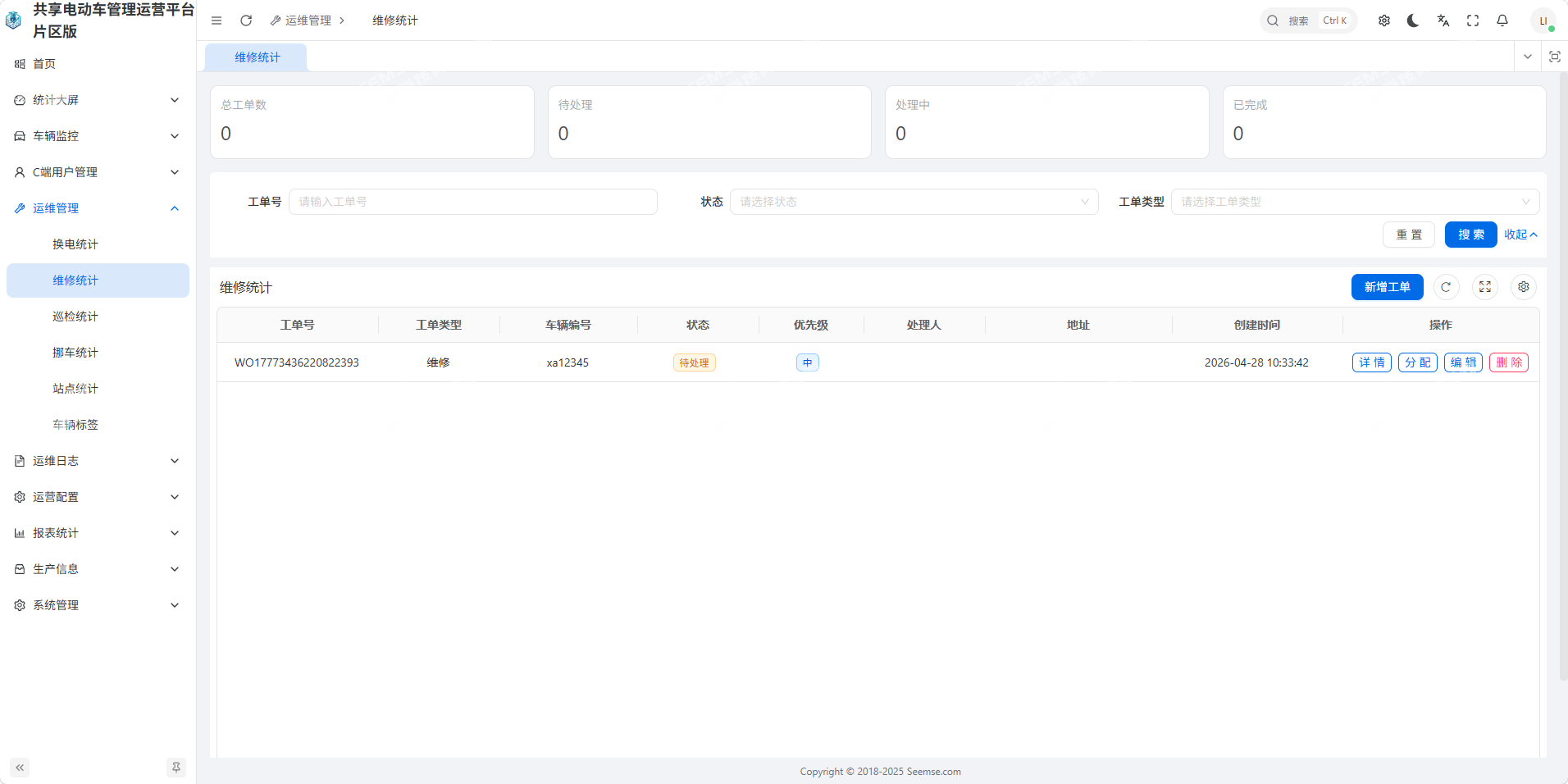
Repair statistics: View repair statistics by district, with charts and logs;
Inspection statistics: View inspection statistics by district, with charts and logs;
Vehicle relocation statistics: View vehicle relocation statistics by district, with charts and logs;
O&M task configuration: View and add O&M tasks, support automatic task review configuration and task push configuration, and manage O&M tasks;
Vehicle statistics: View data for vehicles currently operating in the selected district by district, with multi-dimensional filtering and search by vehicle number;
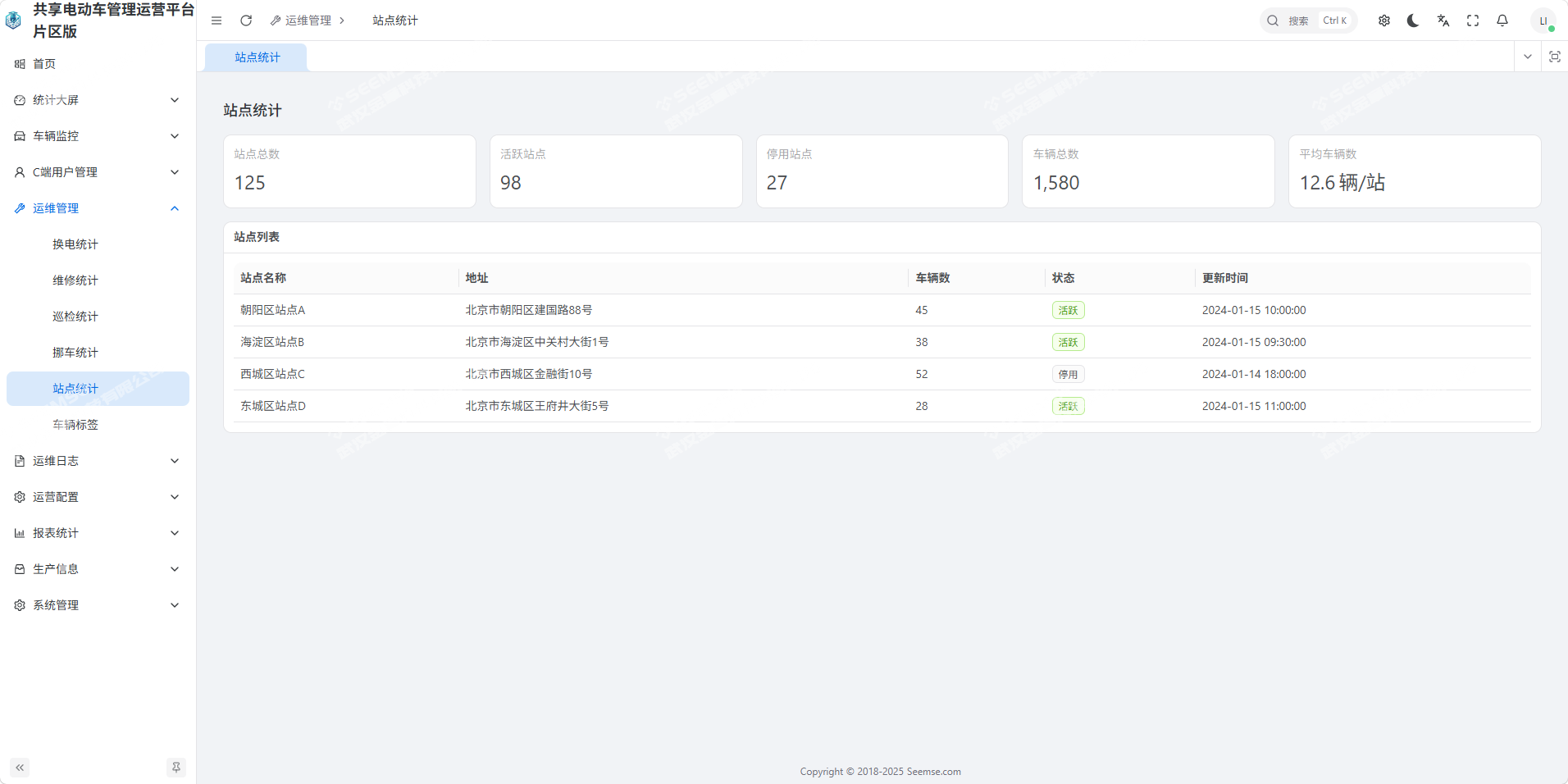
Station statistics: View station information for the selected district by district, with multi-dimensional filtering and search by station number;
Vehicle tags: Support adding vehicle tags.
2.5 Operation Logs
Full-process operation log records for easy tracing of management operations and system status.
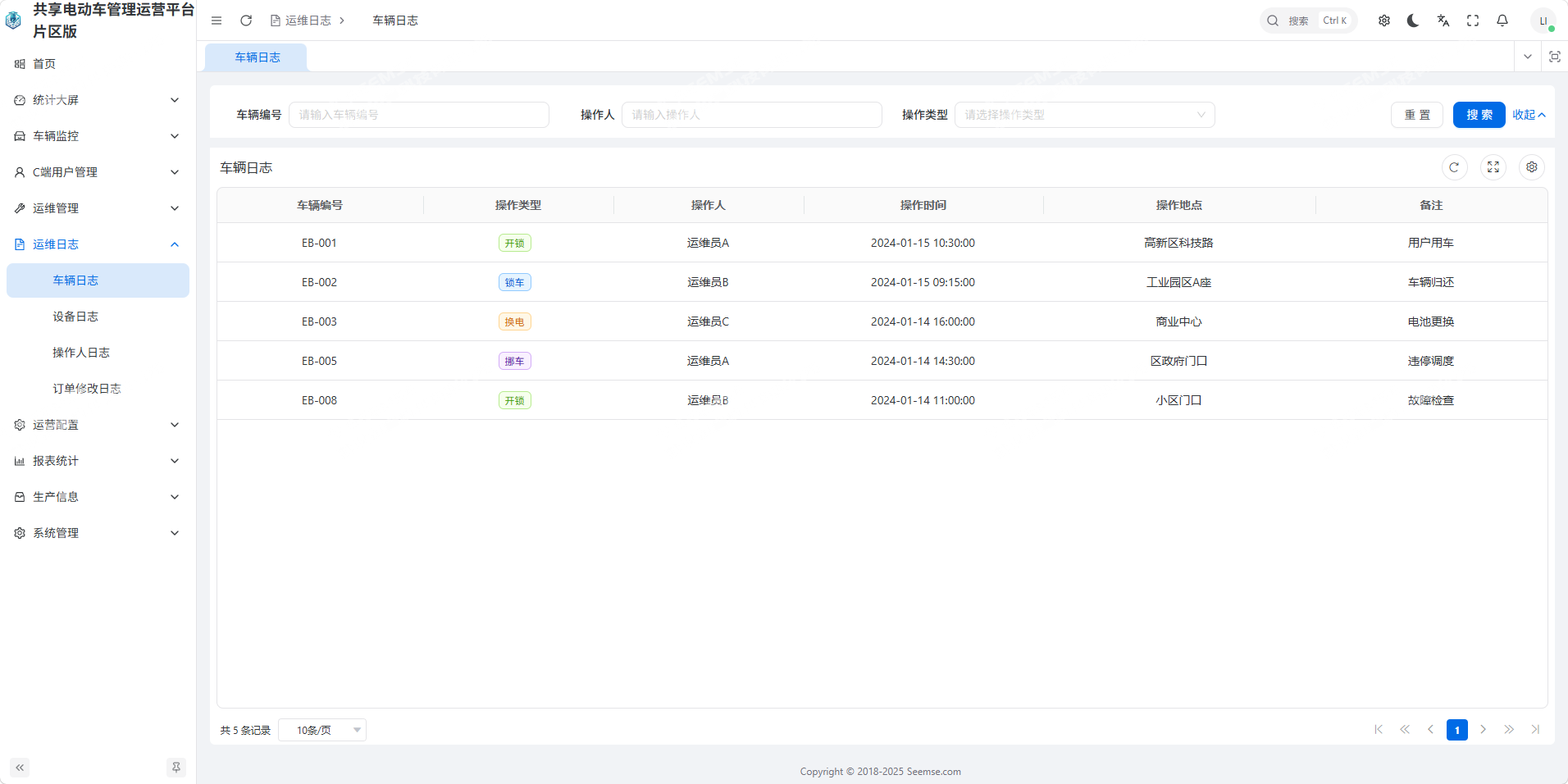
Vehicle logs: View operation log content for all vehicles on the platform, with multi-dimensional filtering and search;
Operator logs: View operation log content for all accounts in the management backend, with multi-dimensional filtering and search;
Order modification logs: View order modification log content, with multi-dimensional filtering and search.
2.6 Permission Management
Refined permission and configuration management to ensure system security and standardized operations.
Role table: Supports role management;
User table: Supports user management;
2.7 Operations Configuration
Flexible operations rules and regional configuration to adapt to personalized district operational needs.
Repair item configuration: Add, delete, and configure repair item content.
System configuration: Configure low-power/offline solutions, local geofence solutions, temporary parking/automatic return, operating hours, road stud precise vehicle use/return, SMS alerts, etc.;
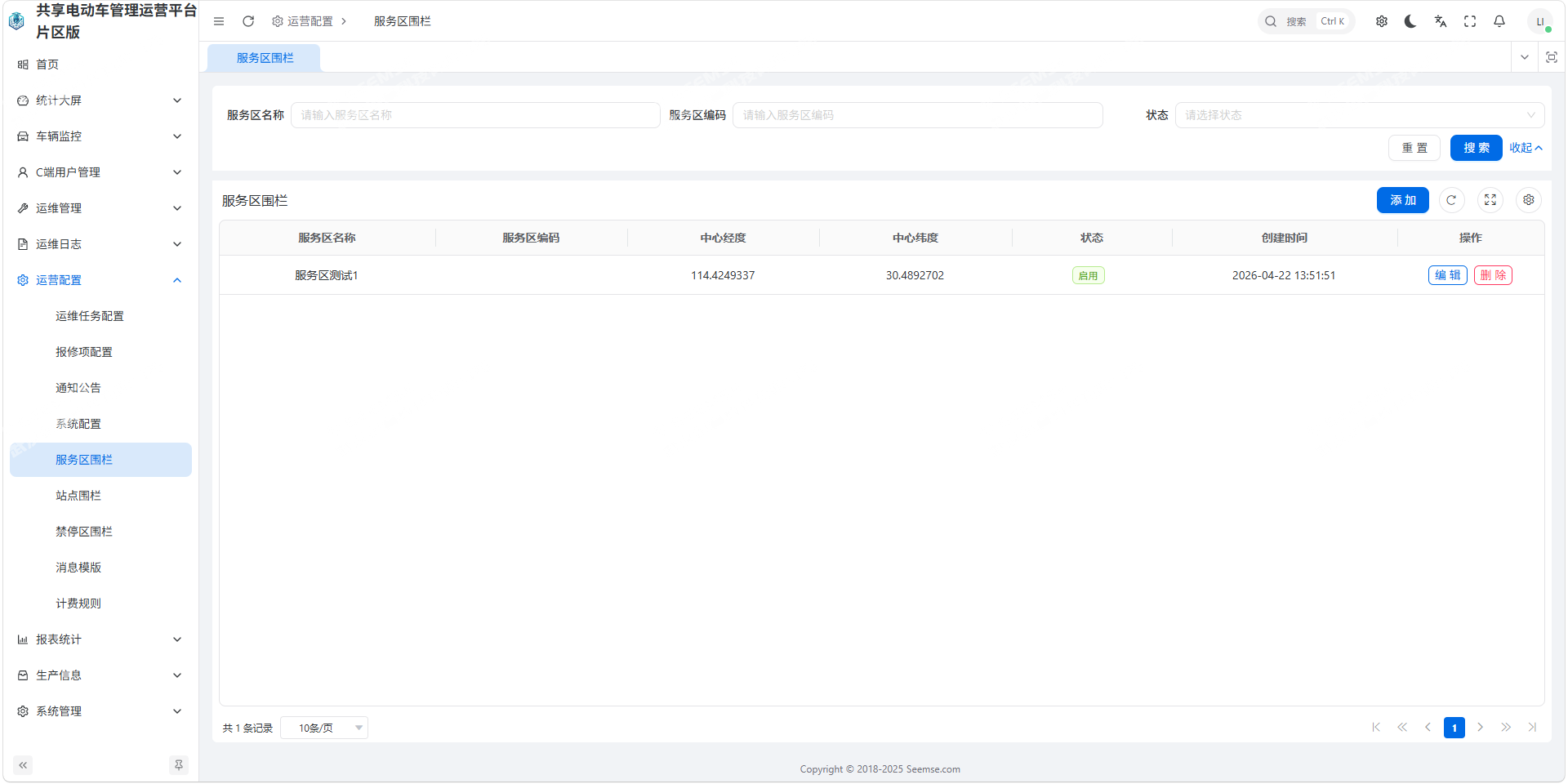
Service area geofence: View service area zones on the map and change service area names;
Station geofence: Configure, add, and manage station geofences; after configuration, view and modify them on the map;
No-parking area geofence: Configure, add, and manage no-parking area geofences; after configuration, view and modify them on the map;
Message templates: Configure information push templates for various scenarios, supporting both system messages and mobile SMS;
2.8 Report Statistics
Multi-dimensional operational report statistics for a clear understanding of operational details and financial data.
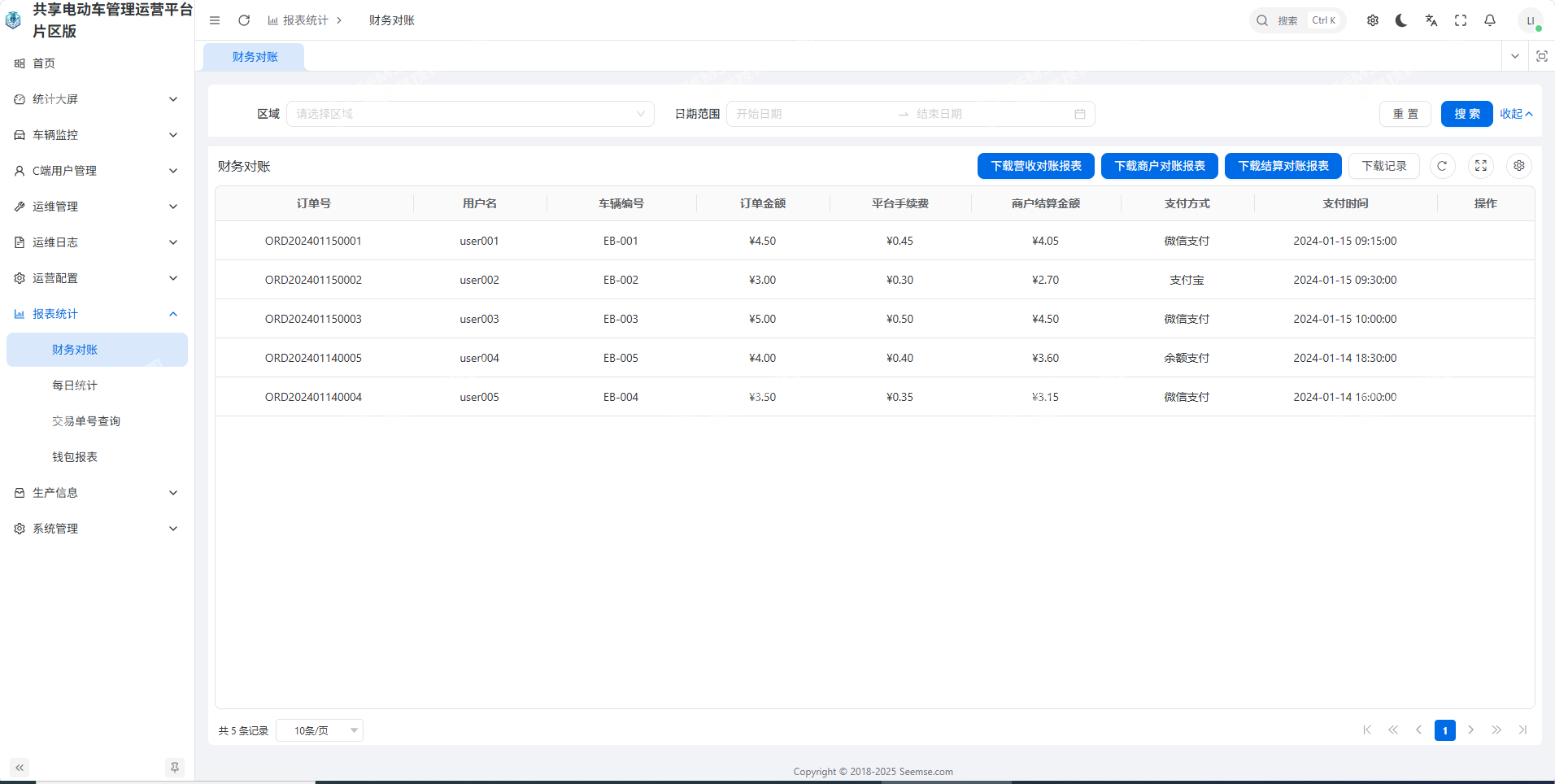
Financial reconciliation: Download revenue reconciliation reports, settlement reconciliation reports, and customer reconciliation reports, and view download records.
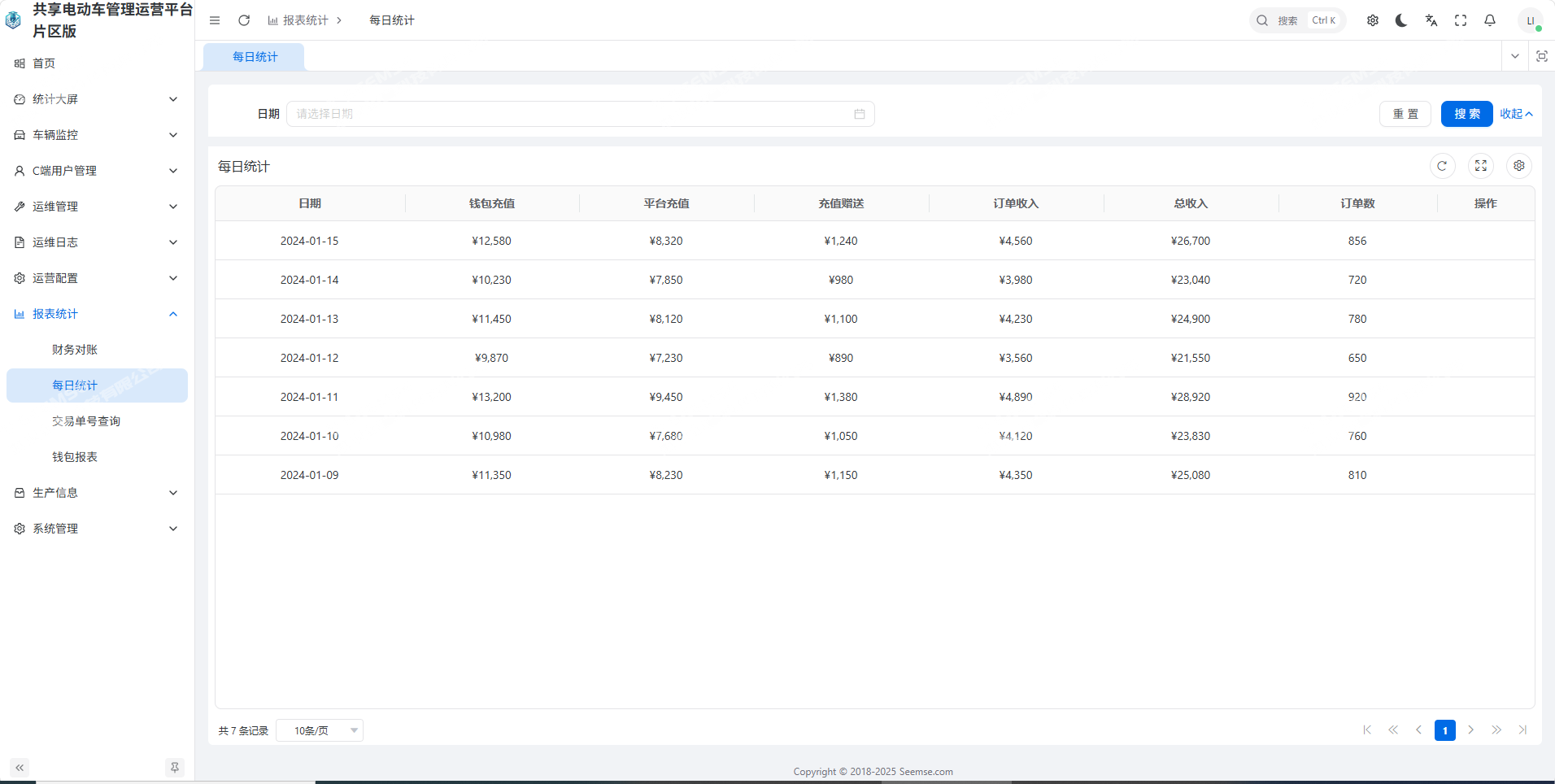
Daily statistics: Calculate daily transaction amounts by day, including wallet recharge, platform recharge, recharge gifts, total revenue, etc.;
Transaction number query: Query related transaction orders by transaction number, and click to view details;
Wallet report: View detailed user wallet change reports by order;
2.9 Production Information
Full-lifecycle vehicle production and configuration management, adapting to the full-process operational needs of vehicles.
QR code change: Change vehicle QR code information.
Import/export: Batch import, batch update, single import, quick generation, and batch listing/unlisting of vehicle production information;
Voltage configuration: Edit, add, and bind voltage management scheme information;
Vehicle list: View the current platform vehicle list, with multi-dimensional filtering and search;
Voice upgrade: Create vehicle voice upgrade tasks;
Device upgrade: Create vehicle device upgrade tasks.
3. Merchant O&M Portal (WeChat Mini Program)
3.1 Monitoring
A lightweight vehicle monitoring module for real-time visibility into district vehicle operating status.
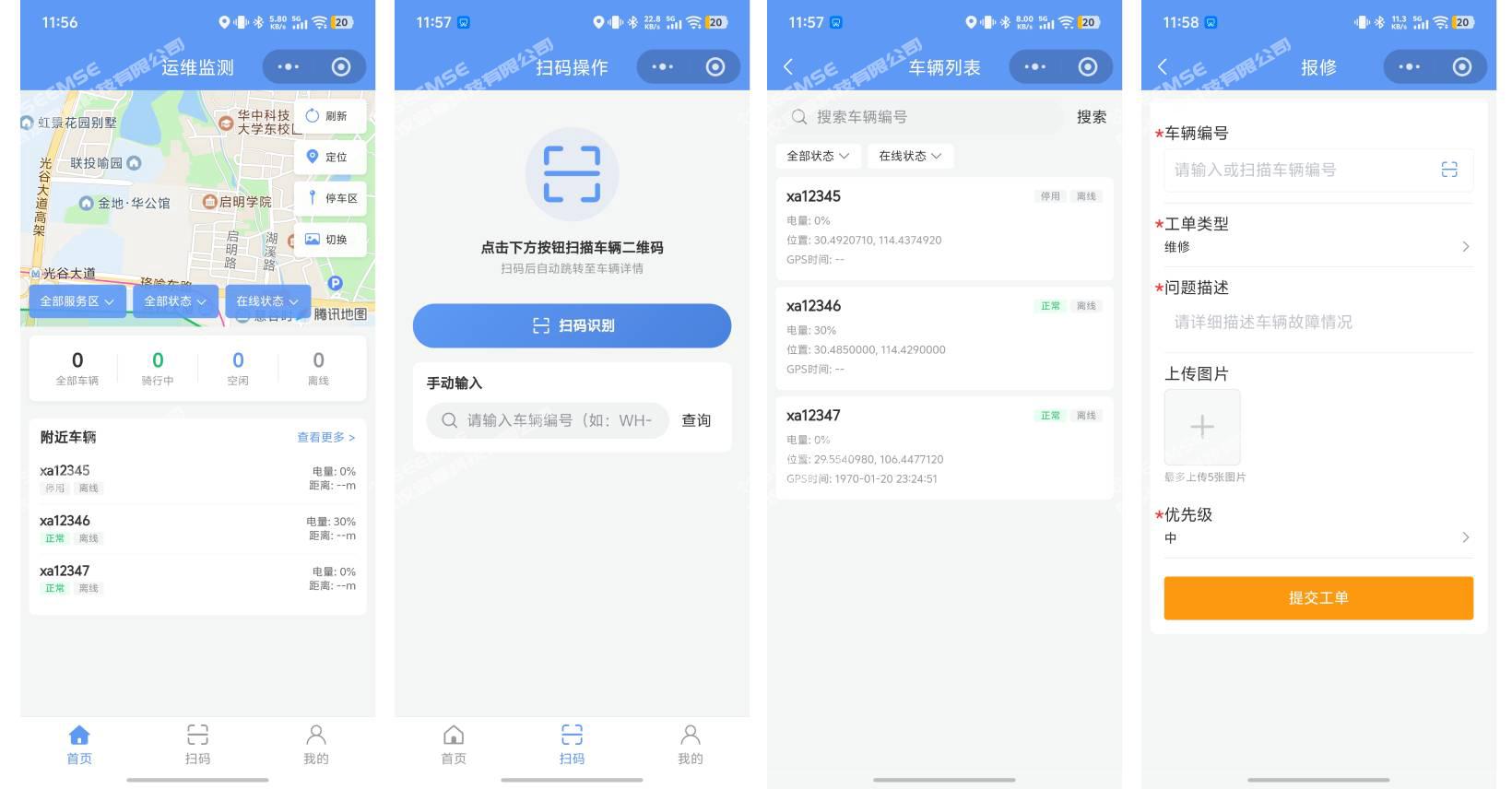
Filter switching: Switch between service areas permitted for the current account, and filter vehicles by battery scheme, number segment, status, and other conditions;
Map functions: Support switching between satellite maps and general maps, display of vehicle/map details, display of parking area information, map refresh, and current location positioning;
Vehicle data display: Display the total number of operating vehicles and the number of vehicles currently being ridden in real time, making operational data clear at a glance;
Dispatch management: In dispatch mode, turn on vehicle flashing lights, enable/disable push-vehicle mode, and complete vehicle relocation by scanning a QR code/manual input;
3.2 Scan Code
A one-stop QR code O&M tool that simplifies on-site operation processes.
Scan tool: Supports a fill light switch to improve the convenience of QR code scanning;
Input method: Supports manual entry of vehicle numbers instead of scanning to adapt to different operating scenarios;
Detail view: Quickly obtain detailed vehicle information by scanning a QR code or manually entering a vehicle number;
Vehicle control: Supports remote unlocking, locking, and battery swapping, making on-site O&M more flexible and efficient.
3.3 O&M Module
Full-process O&M work orders and vehicle management for efficient handling of daily O&M work.
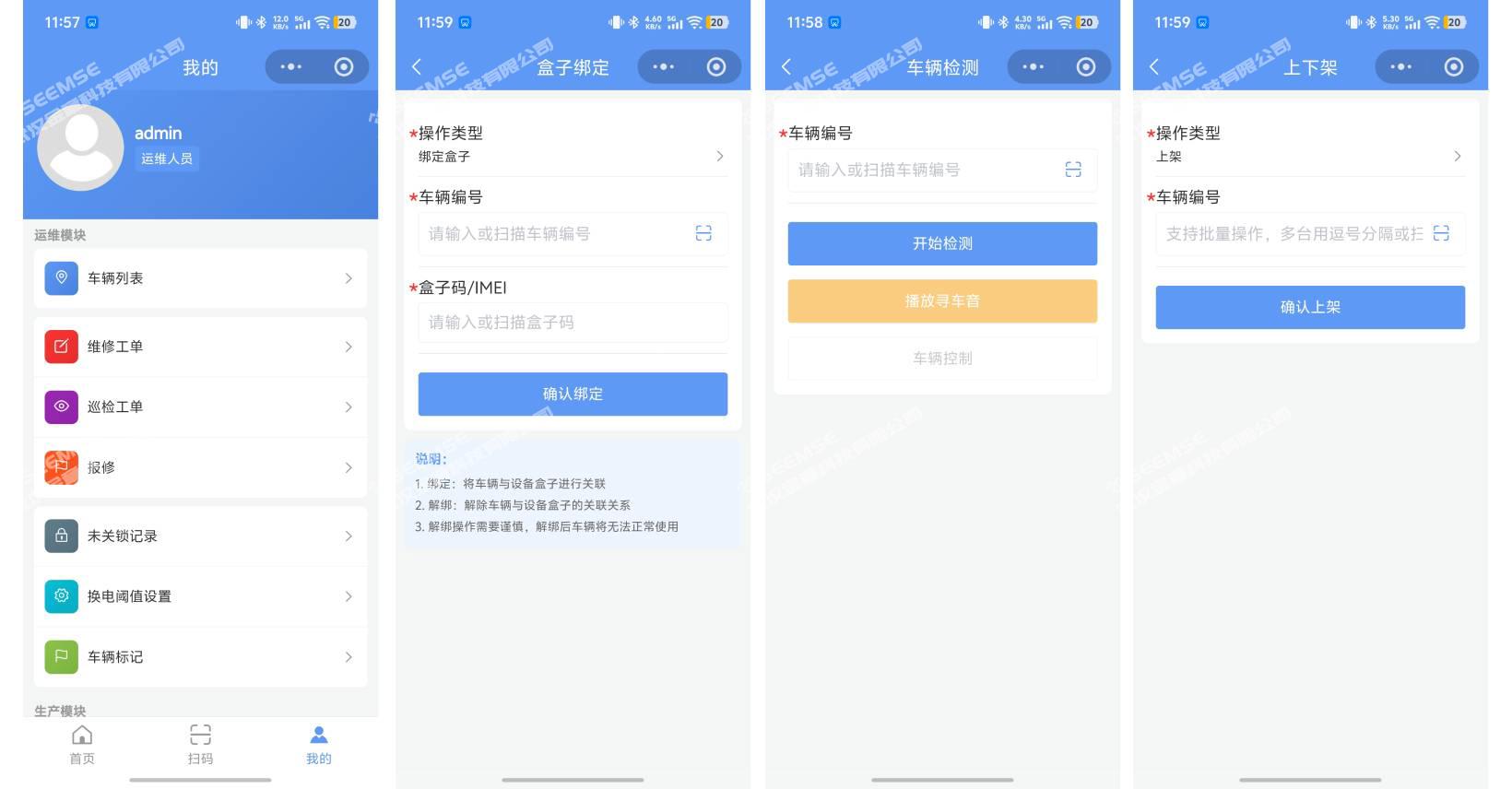
Vehicle list management: View the number, status, and current battery level of all currently operating vehicles, with filtering by status;
Battery swap management: After scanning a QR code or manually entering a vehicle number, open/close the battery compartment and play the find-vehicle sound to conveniently complete battery swapping;
Relocation management: Support single/multiple vehicle relocation by scanning a QR code or manually entering vehicle numbers;
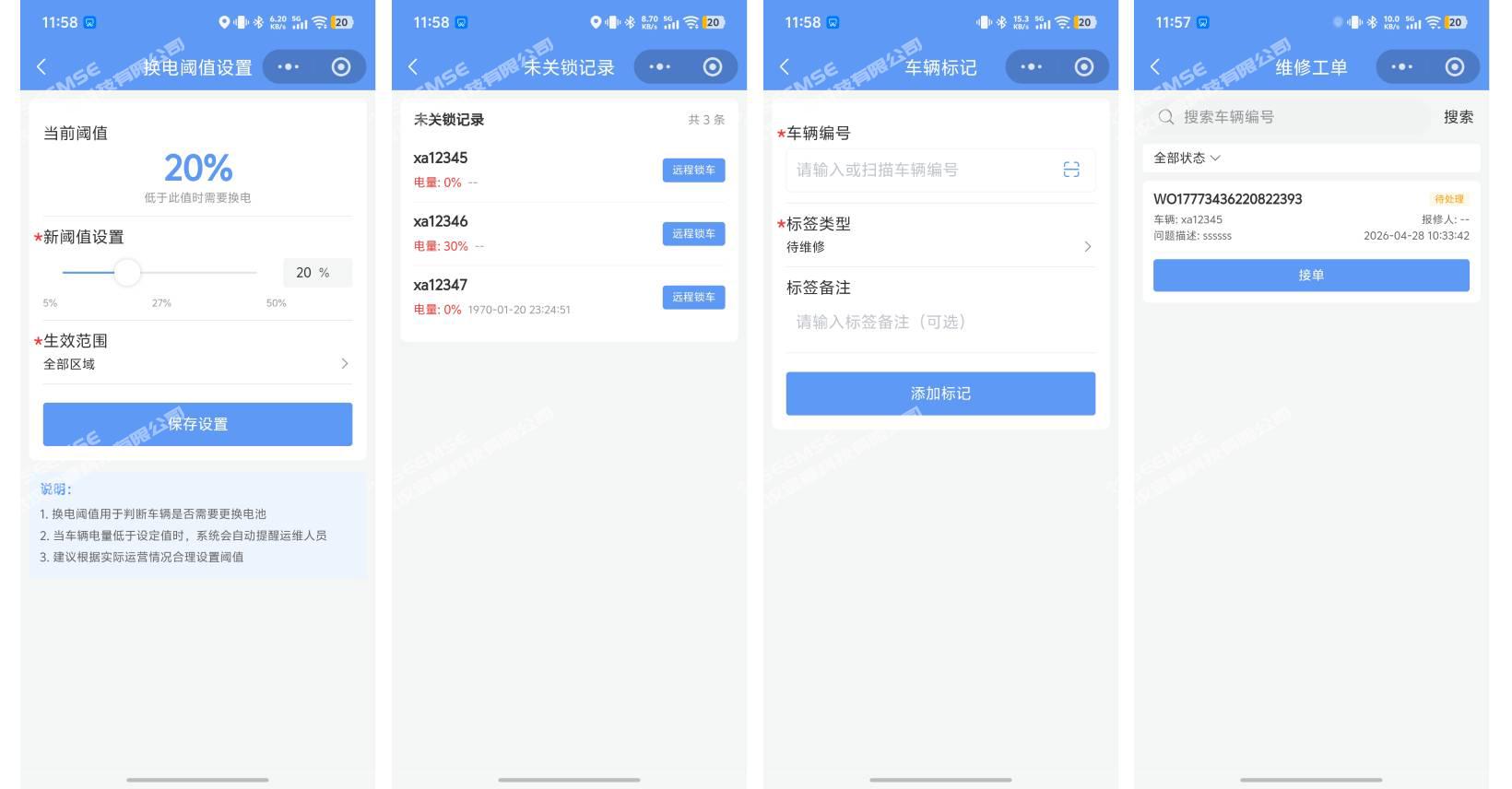
Repair work order management: View the current list of all repair work orders, view work order details and operate, and support filtering by status;
Inspection work order management: View the current list of all inspection work orders, view work order details and operate, and support filtering by status;
Vehicle repair request: After scanning a QR code or manually entering a vehicle number, enter the vehicle repair issue and submit it to quickly report a fault;
Unlocked vehicle records: View records of vehicles that have not been locked, and handle abnormal situations in a timely manner;
Battery swap threshold settings: Enter a percentage value to customize the vehicle battery swap reminder threshold;
Vehicle marking: Support vehicle tag settings for categorized management of different vehicles;
3.4 Production Module
A lightweight vehicle configuration tool suitable for full-lifecycle management of vehicles in small and micro operations.
Vehicle diagnostics: After scanning a QR code or manually entering a vehicle number, perform diagnostic operations such as find-vehicle sound, throttle switch, defense state, rear wheel lock/saddle lock/helmet lock control, and restart.
Vehicle box binding: Complete device binding and unbinding via vehicle number and box code;
Vehicle status query: Quickly query various vehicle statuses by scanning a QR code or manually entering a vehicle number;
Vehicle listing/unlisting: Complete vehicle listing/unlisting by scanning a QR code or manually entering a vehicle number, flexibly controlling vehicle operating status.